Were you looking to know how to save changes on WordPress without publishing? In this step-by-step article, I will tell you, how you can do that.
If you don’t know WordPress very well, don’t worry. This tutorial will be 100% beginner-friendly.
So, let’s get started.
If you are running a new WordPress blog & want to edit an already published page or post on your WordPress site, you can see there is no way to save your edits.
You have to ‘Publish’ those edits or you can ‘Switch to draft‘ that will immediately unpublish your page or post.
That is not what you are looking for.
You want to save your edits as drafts but the article will remain live.
Fortunately, there has no way to do that in WordPress by default. But you can use a small useful plugin to do that.
In this article, will show you how to save changes on WordPress without publishing using Revisionize.
If you prefer a video tutorial instate of a written article, here it is.
If you would like to continue reading, please proceed.
Revisionize is a free plugin, you can download it from the WordPress repository. It is easy to use & a lightweight plugin that will not affect your site loading speed.
First of all, I will install this plugin.
To do so,
Click to Plugins >> Add New.

In search plugins… field in the top right corner, write Revisionize there. You can copy/paste the word as well.
There you will see a couple more plugins in search results. Find revisionize By Jamie Chong.
Click to Install Now.
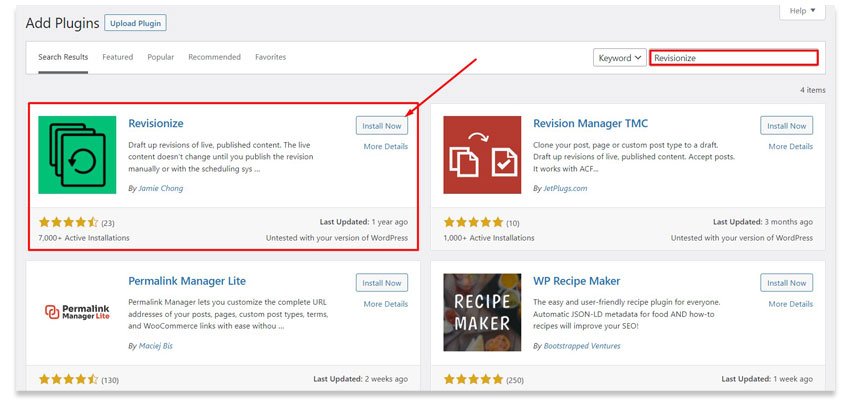
This plugin will install.
Then click on Active Plugin.
How to Save Changes on WordPress without Publishing
First part, plugin installation is done. Now I will show you how you can save changes on WordPress without publishing.
I want to edit one of my popular article ‘Best WordPress Malware Removal Plugins‘ for example but I could edit any post or page.
To do that,
I will hover over Post then, click on All Posts from the left side WordPress menu.

All of my site articles will be there and I will find the article that I want to edit.
You will see there is an extra link ‘Revisionize’ beside view, quick edits, trash, etc.
Click on that Revisionize link.

It will create a duplicate page instantly and the duplicated post will open with the editor. Now I can edit this article as much as I can.
After some editing, I can click to ‘Save draft‘. It will save as a draft but will not affect on my live article.

I can edit a few hours or a few days later, it does not matter when I do.
After all my edits when I will click ‘Publish‘, then all edits will publish and the article will live on my website.
This is how my old article will unpublish instantly. I can keep it as a backup post, or I can delete it manually. I can do that step automatically if I configure some settings.
To do that,
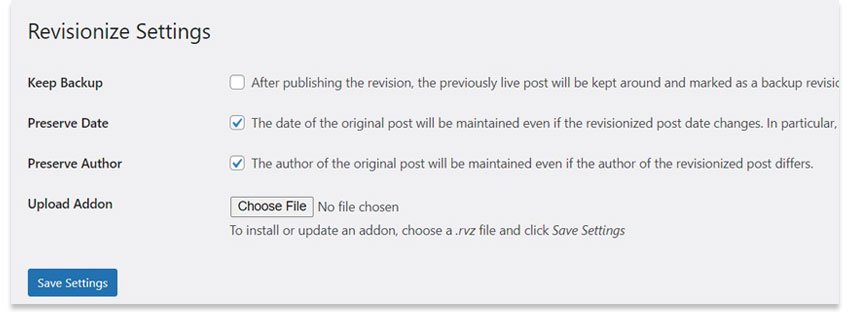
I will hover over the ‘Settings‘ and then click on ‘Revisionize‘.

In Revisionize Settings, there have some options for action that you can take automatically.
I usually uncheck Keep Backup so that when I click to publish an article, the draft article delete automatically.
Still, Need Help?
This is all about how to save changes on a WordPress page or post without publishing. But if you are still confused about how to do that.
Contact me I am here to help you.
If you have questions, fill free to ask in the comment below. I will get back to you as soon as I can.
If this article helps you, I will appreciate it if you share it with your friends.