
If you’re a WordPress user, chances are high you’ve seen this warning Update PHP Version on your dashboard like:
“Your site is running on an outdated version of PHP“.
Sounds simple, right? Just update and move on?
Not really.
Because here’s the things…
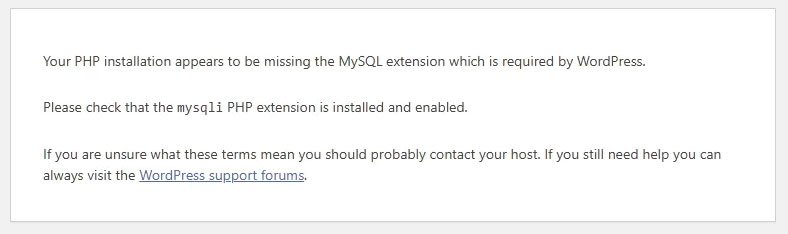
If you update PHP version the wrong way, even by a single click, your entire site can go down. I’m talking white screen, fatal error messages, or your homepage showing something like:
“Your PHP installation appears to be missing the MySQL extension which is required by WordPress”.
Yup. That actually happened to me on my website. If you are in the same issue, don’t worry.
In this guide, I will walk you through how I fixed everything step by step. You’ll learn:
- Why do you need to update PHP version
- How to do it safely without breaking anything
- What to do if your site breaks
- And how to fix the MySQL extension error if it happen
Whether you’re a beginner or just a bit nervous about messing with PHP, this is for you.
Why Should You Even Update PHP Version?
Let’s keep it simple.
PHP is the engine behind your WordPress site.
Just like your smartphone needs updates to stay fast and secure, your WordPress site needs PHP updates for
🔐 1. Security
Hackers love outdated PHP. It’s an open door. And old PHP versions no longer receive security updates.
PHP 8.0 stopped getting security updates in November 2023. That means if you’re still using it, your website may not be safe anymore.
⚡ 2. Speed
New PHP versions = faster WordPress websites. PHP 8.2 is a lot faster than PHP 8.0 or 7.4. Faster sites rank better on Google.
🔌 3. Plugin/Theme Compatibility
Some WordPress plugins won’t even work unless you’re using a newer PHP version. Updates might break if your PHP version is too old.
Bottom line?
If your PHP version is too old, it can:
- Make your site slow
- Break features or plugins
- Open your site to hackers
Updating PHP is not just good, it’s necessary these days.
So you should update PHP version.
Can Updating PHP Break My WordPress Site?
Unfortunately… yes.
If you update PHP version in WordPress wrong way, your site might break.
That’s what happened when I updated my websites to PHP 8.4 directly. Boom. White screen withe the error:
So here’s how I fixed that.
Step-by-Step: How to Update PHP Version
Updating your PHP version in WordPress is important, but don’t rush it.
A small mistake can break your website.
So before you make any changes, take a few simple steps to keep everything safe.
Here is the video tutorial on How to Safely Update PHP Version in WordPress.
Step 1: Backup. Always.
Before touching anything, take a full site backup including files & database. You can take backup manually which is technical.
But if you are newbie, use plugins like UpdraftPlus or your host’s backup option. If anything goes wrong, you can restore your site from backup.
I always do this before and after any update.
Trust me, this one step can save your whole night.
Step 2: Check Your Current PHP Version
If your site is showing an error like “Your site is running on an outdated version of PHP” it’s a sign that your PHP version is too old. You might find your current PHP version there.

Like you see, here I was running PHP (8.0.30), which does not receive any security update.
Or you can check your current PHP version going through Site Health Status. You can find that on your WordPress dashboard under Tools » Site Health. Like this:
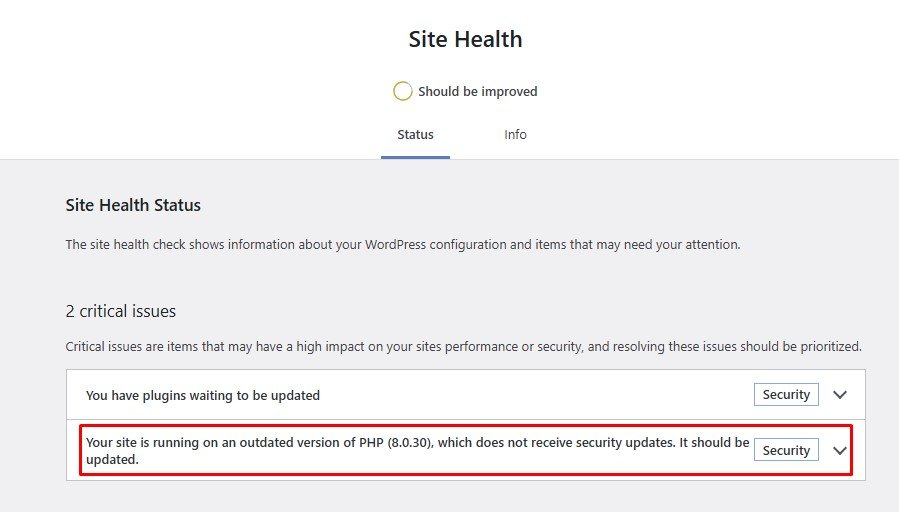
You can do this from your WordPress dashboard:
- Go to Tools > Site Health
- Click the Status tab
Here, you’ll see your current PHP version. If it’s old & you get security working, it’s definitely time to upgrade.
As of now, PHP 8.2 or 8.3 is stable and recommended.
Step 3: Go to cPanel → MultiPHP Manager
Most shared hosting uses cPanel. In cPanel, open MultiPHP Manager under software section.
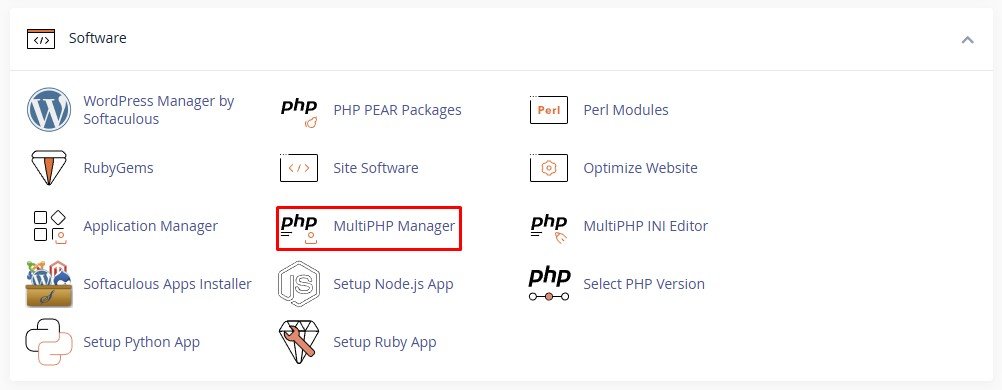
You’ll see your list of domains there.
Now choose a PHP version for the correct domain.
I recommend you to update to 8.3 if you support, or 8.2. (they’re fast and stable).
Avoid jumping straight to 8.4 unless you’ve tested everything.
Step 4: Check Your Website
Open your site in a new tab. Clear your cache. Check homepage, blog, contact page, shop, everything. If everything fine, continue with that.
If Something Breaks After PHP Update?
If anything breaks, don’t panic. I have solutions for you.
1. Seeing a White Screen or MySQL Error?
Go back to MultiPHP Manager and switch PHP back to your old version (like 8.0).
Then check the site again.
If it loads, then update one stage like 8.1. If its work, then again update one stage. Then choose your compatible version.
If nothing works, probably one of your plugins/themes isn’t compatible.
2. Check for Incompatible Plugins
Update all plugins & themes to the latest version. Check if it works. If not, try disabling plugins one by one.
Disable one plugin, then check the site. Again disable another plugin, then check the stie again. Find the culprit plugin like this way.
3. Fixing the “Missing MySQL Extension” Error
Go to:
cPanel → Select PHP Version
Select Extensions instate of My Domains.
Then Enable mysqli + pdo_mysql
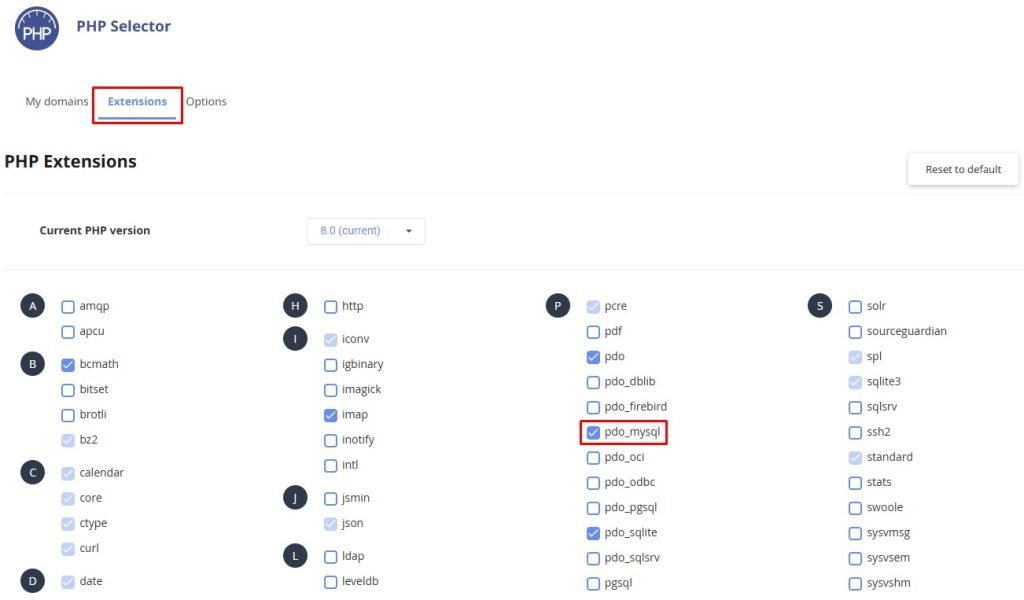
Then reload your site. In 90% of cases, this resolves the issue. If not, let us know.
Real-Life Fix: What Happened to My Site
Let me share exactly what happened with me last time.
I attempted to update from PHP 8.0 to 8.4. Boom. The site showed this:
“Your PHP installation appears to be missing the MySQL extension which is required by WordPress”
I quickly realised 8.4 didn’t have mysqli enabled by default in cPanel. I rolled back to 8.2, enabled the right extensions, and the site came back online in seconds.
Bonus Tips
- Use PHP 8.1 or 8.2 — they’re stable and widely supported
- Avoid cheap or outdated themes/plugins
- Always check for PHP version compatibility in plugin details
- Update on staging site first, not directly on the live site
- Enable email error notifications in WordPress to catch early signs
Final Thoughts
Updating PHP in WordPress is not optional. It’s critical for your site’s speed, security, and stability.
But you need to be smart about it.
Take a backup, check compatibility, enable required extensions, and proceed with caution.
I believe this quick guide will help you to update PHP version without breaking your WordPress site.
Even if something goes wrong, now you know how to fix it like a pro.