

There are various ways to upload PDFs to WordPress. Usually, it is one of the popular media files that people use for many purposes. Mostly for exclusive information or providing in-depth information.
So, here in this article, I am about to show you how to upload a pdf to WordPress. how to link to a pdf in WordPress post or page.
In this WordPress beginner guide, I will tell you how you can embed pdf in WordPress without a plugin. After that, I will explain how you can do that using a plugin.
Suggested Reading…
How to upload PDF to Media Library
To upload a PDF to the Media Library, you need to first make sure that the PDF is in a format that WordPress can understand. Most PDFs are in PDF/A format, which WordPress can understand.
Once you have ensured that the PDF is in a WordPress-compatible format, you can upload it to the Media Library by following these steps:
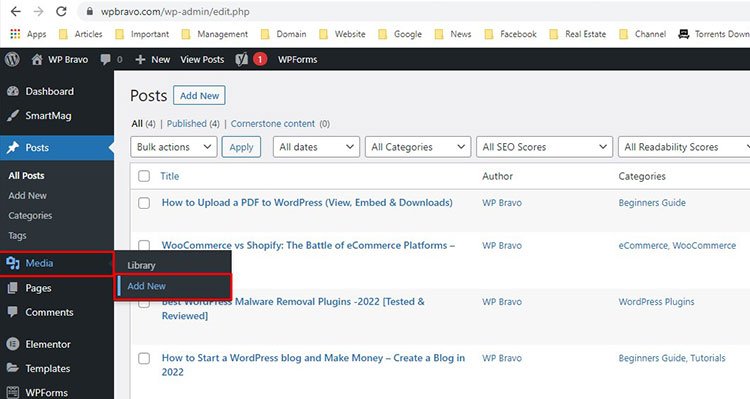
First, you have to log in to your WordPress admin area then go to the Media from the side menu bar. Then click on Add New to upload a media file. Since WordPress can understand PDF files, it will also work with this method.
Now you can upload your PDF in two ways.
- You can drag the file and drop it into the square section to start automatic uploading.
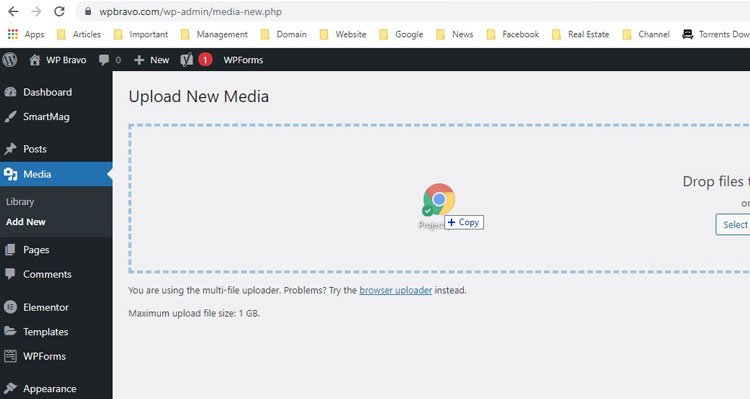
- Select the Files button, go to the PDF file location, and select it to upload.
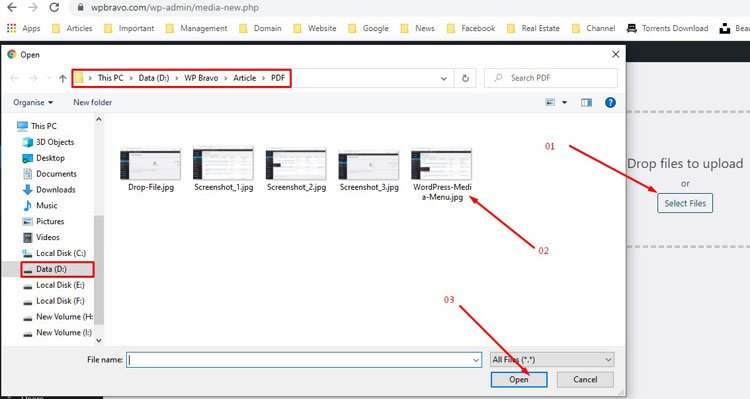
Then click on the Open button to start uploading. And it will take some time according to the file size.
However, if it is more than 15MB, it may get an error due to the WordPress upload limit. WordPress has the facility to increase file size too.
Otherwise, it will upload, and you will see the file.
Add a PDF File to a Post or Page in WordPress
Usually, you upload a PDF to include that in your post or page.
There are two ways to do that.
The first method is to take the link and then implement that in your post.
And another method only works with the latest Gutenberg editor, which is to directly add the PDF into the post.
How to copy PDF link and implement into the post
First, go to the Media folder and click on the file.
Then it will show the details of that file where you can update, Title, Meta, and see the link. You can copy the link from there.
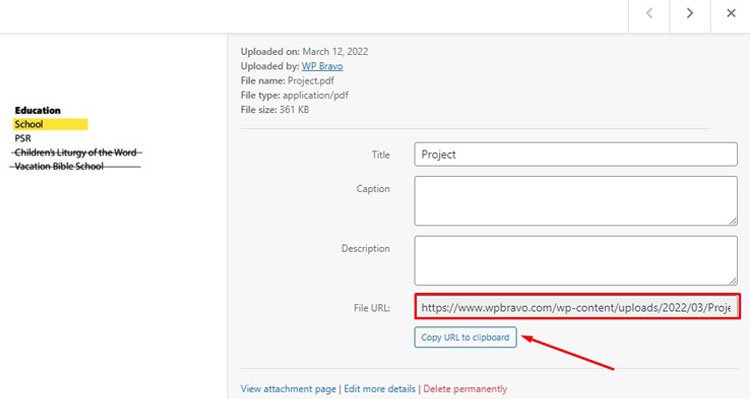
Since you have the link, you can implement that to any post and page via anchor tag.
To do that, select the word or image to which you want to add the link to, then click on the add link and paste that link you have copied earlier.
Directly add the PDF into the Post or Page.
- When you are editing any post or page with a Gutenberg editor, you can click on the add button.
- Then in the dialogue box, select file. It will go to the media folder.
- Now select your desired pdf that you want to include in that page or post.
Make a PDF downloadable.
It is pretty simple to do. When you copy the URL, make it a downloadable anchor tag and then insert it into the post or page wherever you want.
For example, if https://yoursite.com/wp-content/uploads/sample.pdf is your link, you can write simple HTML code like this.
<a href=”https://yoursite.com/wp-content/uploads/sample.pdf”> Download PDF </a>
And it will be a downloadable link.
Conclusion
If you do not want to do everything manually, you can install a plugin that can embed pdf to show it on the side or make it a downloadable link.
However, it is a piece of cake and suitable only for beginners. I hope you have the perfect direction for what to do. If you have any problem though, we are experts in this field, contact us to help you. you.