
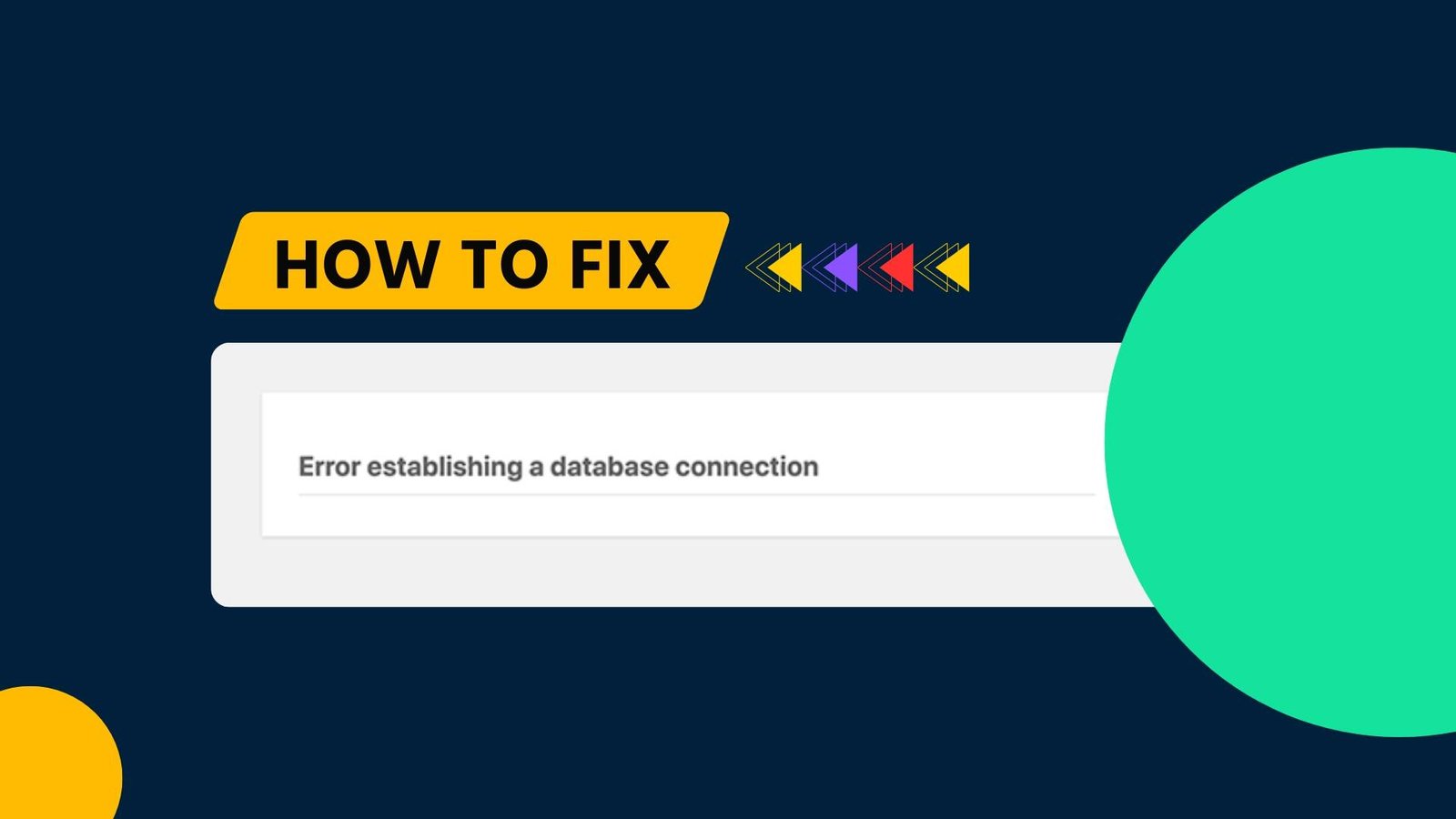
Error establishing a database connection error in WordPress is one of the common error. This issue happens when WordPress fail to connect to the database.
If you see the same error in your website, don’t worry. You are not alone.
In this article I will show you how you can fix this error establishing a database connection in WordPress easily.
If you are too busy & don’t have much time to read this whole article, watch the video tutorial.
Fix: Error Establishing a Database Connection
I will strongly request you to read the whole article.
Because, I will not only tell you the quick fix.
I will tell you the reason behind of this error establishing a database connection happens.
By understanding the root cause, you’ll save time and avoid similar issues in future.
So, let’s dive right in…
First, let’s face all the steps.
- Log into cPanel
- Verify Database Information in wp-config.php
- Check Database Credentials in cPanel
- Refresh the Site
- Fix 404 Errors in WordPress Dashboard
Do you know why this error happens?
It is a general problem that comes when WordPress is unable to find proper access to the database.
And now I’m going to walk you through the steps to solve it so your site will be running efficiently once more.
Step 1: Log into cPanel
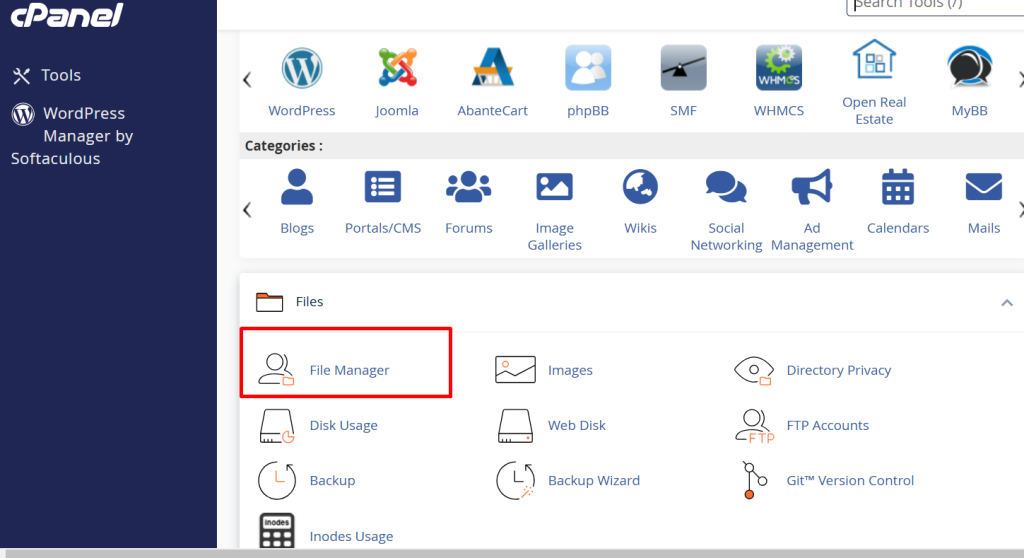
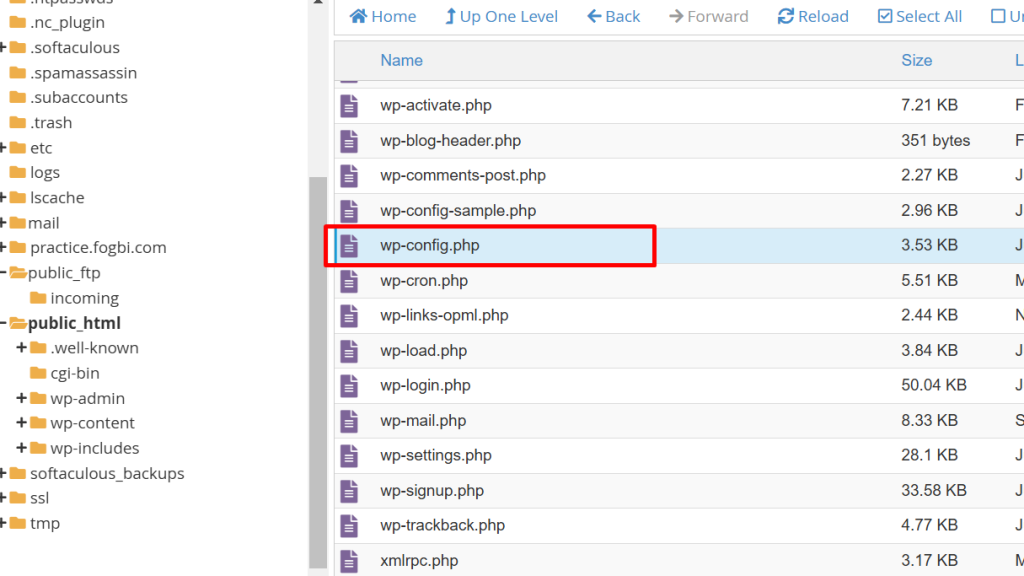
To solve this problem first sign into your cPanel. After logging into the control panel you will be directed to the cPanel, now click on File Manager.
Then search for the folder labeled public_html. Where all your WordPress files are stored.
See the image below for better understanding.
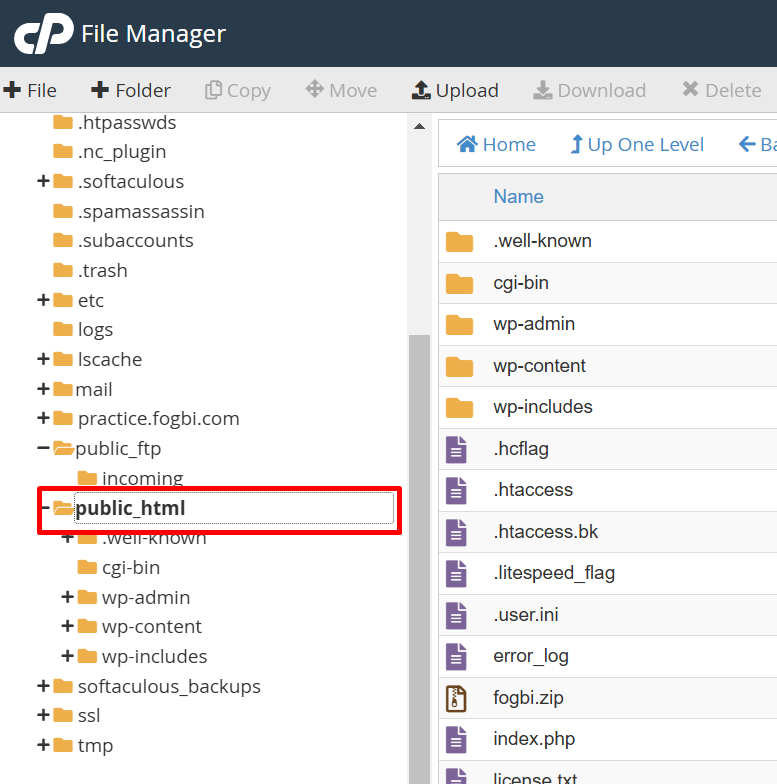
We will concentrate on the wp-config.php file, as it holds the WordPress database connection details.
See the image below.
Move on to…
Step 2: Check Database Details in wp-config.php
In the wp-config.php file, you will find.
- Database name
- Username
- Password
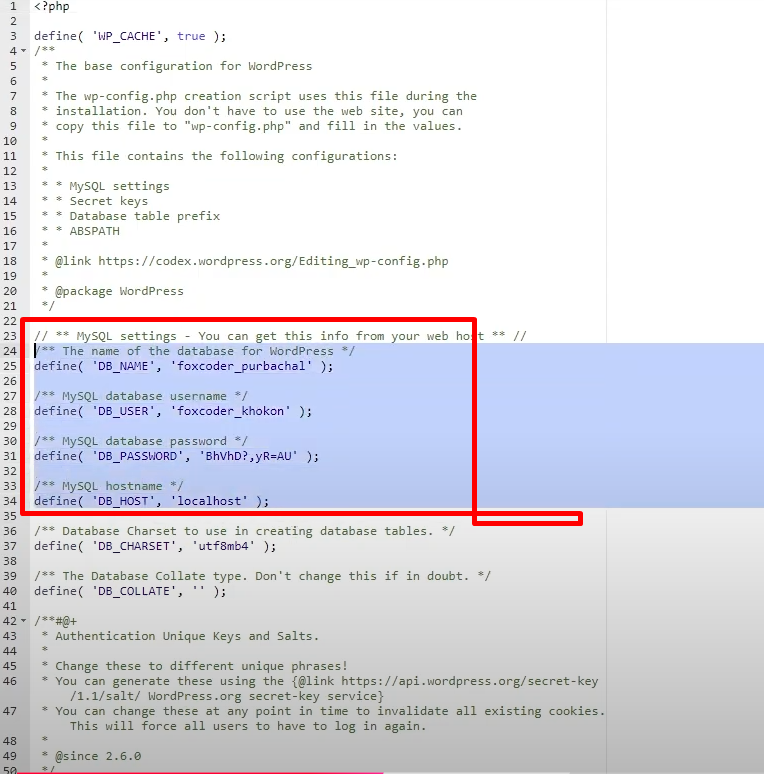
In other words, if any of this information is incorrect or doesn’t match what is stored in actual database credentials WordPress will not be able to connect and the error will be coming.
Time to explain…
Step 3: Check Your Database info on cPanel
To ensure the credentials in wp-config.php are correct, follow these steps:
1. Return to the cPanel and look for the Databases link.
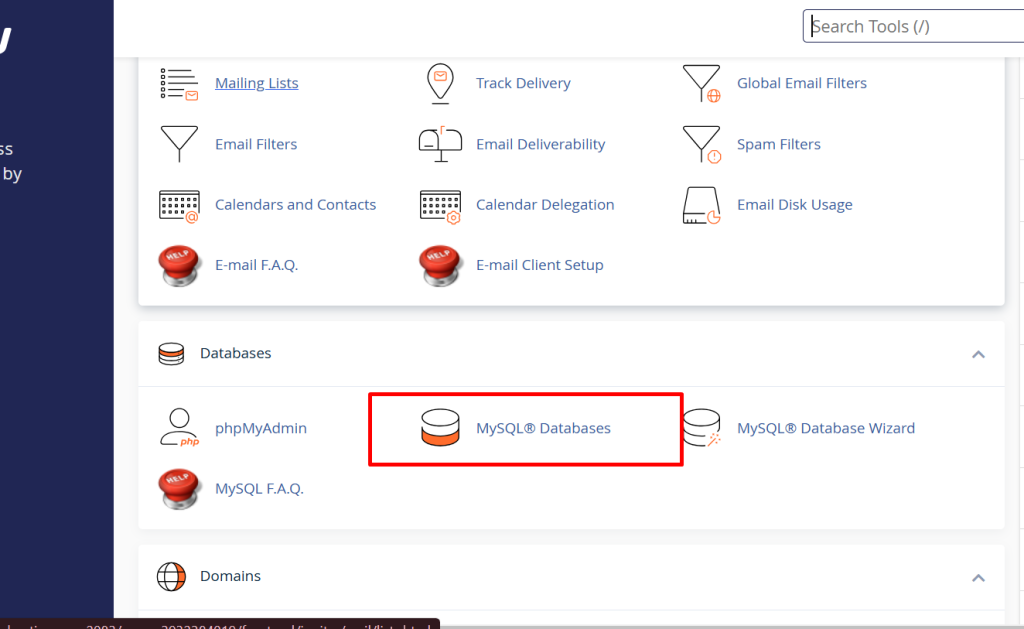
2. After clicking on it you can see your database name,
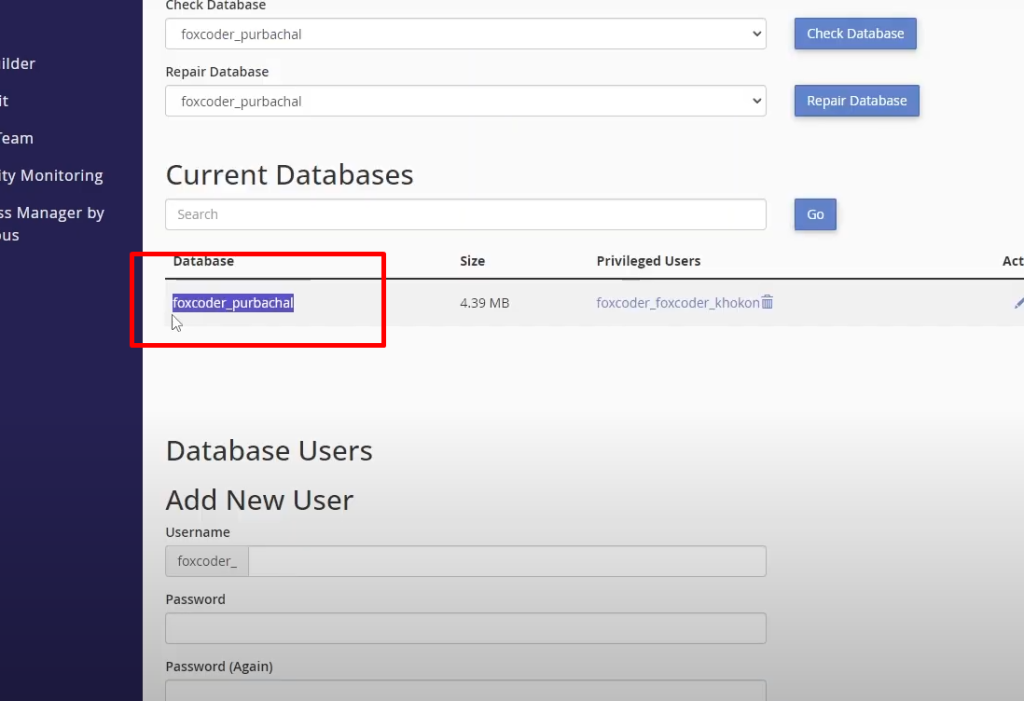
Username and password.
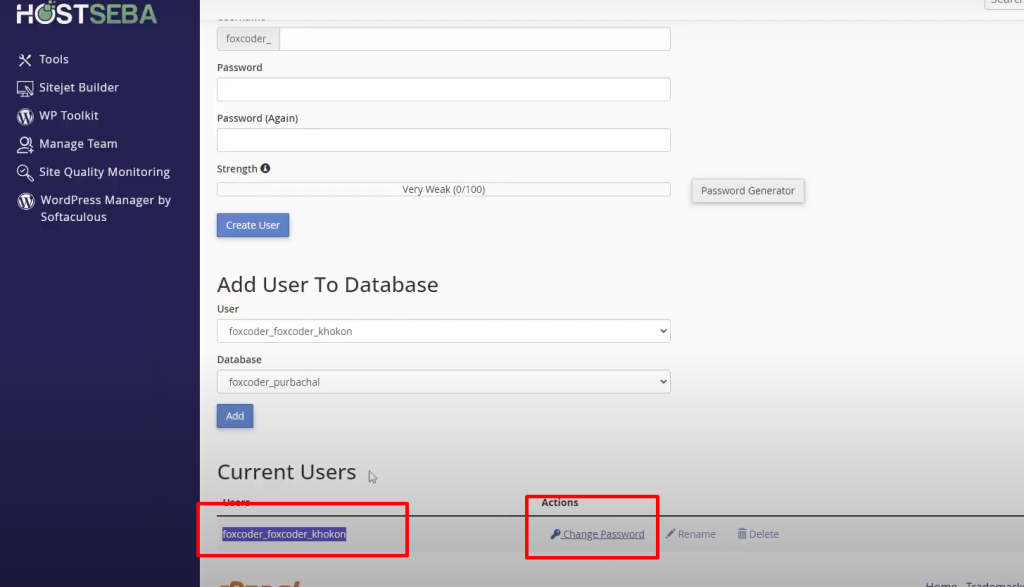
3. All this has to be compared with the one in the file known as wp-config.php.
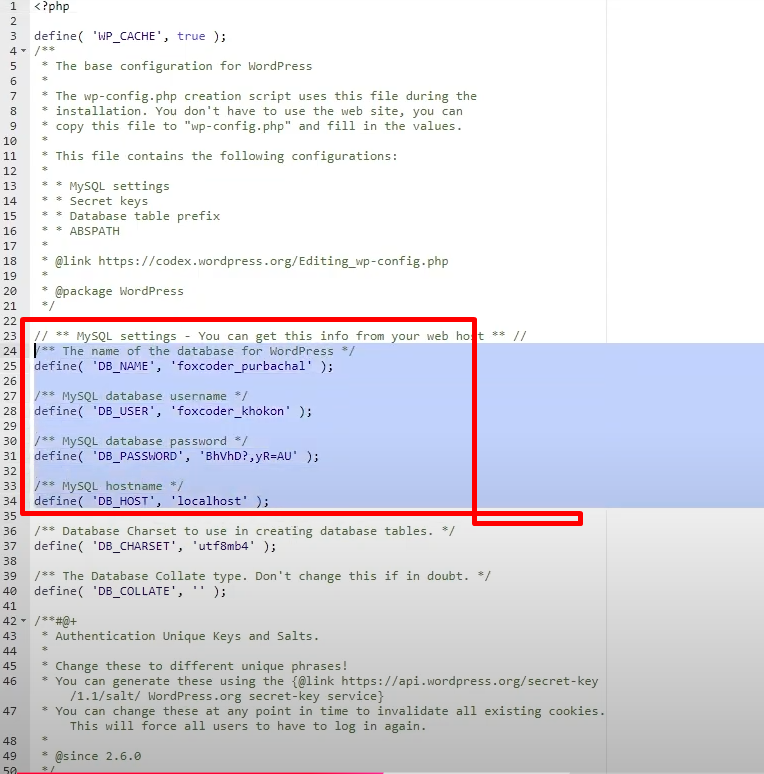
4. If the database name, username, or password doesn’t match, then change it in the WP-CONFIG.PHP file. Just you can copy and paste it into the wp-config.php file in the exact place.
If required, reset the database password in the backend from cPanel after that update the same password in wp-config.php and finally save the changes.
Jump to…
Step 4: Refresh the Site
After you update your credentials, save the changes in the wp-config.php file and refresh your site. If the database information was the problem then your site should open perfectly as it is right now.

Step 5: Fix 404 Errors in WordPress Dashboard
There is no known method to prevent 404 errors from happening.
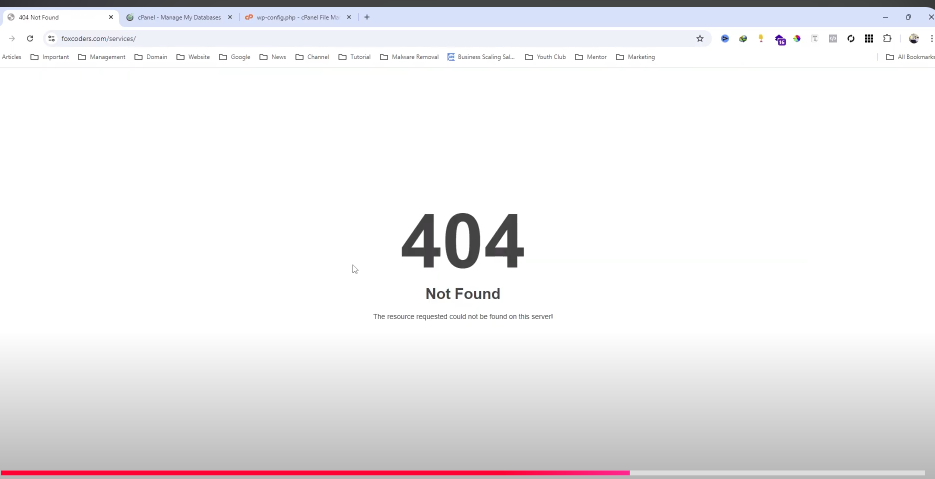
So the next best thing to do is to fix those errors in the WordPress dashboard.
At other times after rectifying the database connection error you can still see some 404 errors on the sites. To resolve this:
1. First, you need to log into your WordPress dashboard.
2. Click on Settings in the WordPress Administration toolbar, then click on Permalinks.
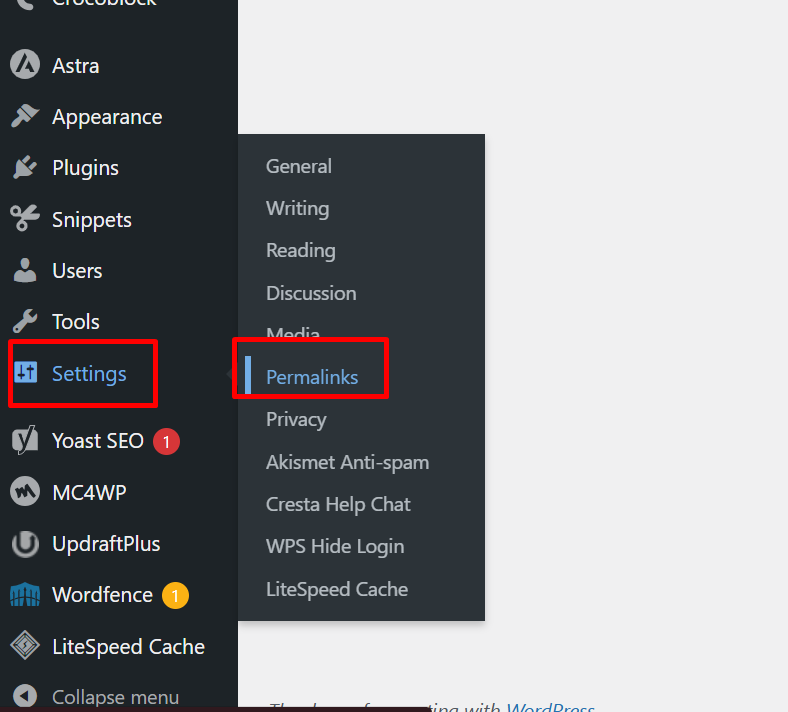
3. Just click on Save Changes leaving all the options in default settings.
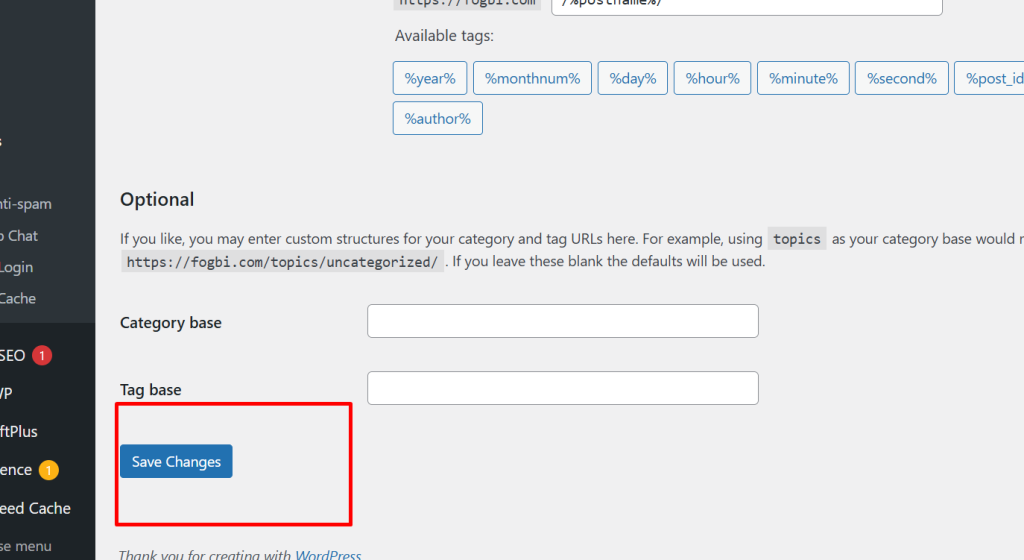
By doing this it will replace the current permalink structure and should eliminate all the 404 errors.
Test Your Site
Visit various pages to ensure everything is loading correctly.
Now It’s Your Turn To Take Step
I hope this guide has shown you how to fix error establishing a database connection in WordPress.
Now I’d like to hear from you.
Did I miss anything that you think should have been written?
Did you understand the step 4?
Or do you have a question about something you read?
If you’re still facing issues, feel free to contact me! And I’ll be glad to assist you.