A Real WordPress Malware Removal Story, Explained Simply for Beginners
Many people ask, “Is WordPress secure?” The answer is yes, but only if you take care of it.
Just like you brush your teeth to protect them from damage, your website also needs regular checkups to stay safe.
This case study tells the real story of how I helped a UK-based dental clinic, Wilton Dental, recover their hacked WordPress site.
Dr. Wahab Adewale Towolawi (BDS, FDSRCS (Eng), MBBS (Lond), PG Dip Clin Derm) reached out to us through our WordPress Malware Removal Service when his site suddenly showed a critical error.
What looked like a small issue turned out to be a serious web-shell backdoor problem that had infected not just one, but 71 sites on the same hosting server.
In this guide, I’ll show you how I:
- Found and removed malware
- Migrated the site to a safe host
- Secured it using simple tools and best practices
This guide is written in simple English so even beginners who are not tech-savvy can understand and follow it.
What Went Wrong with Wilton Dental?
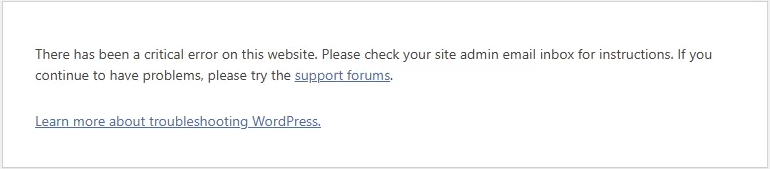
On June 10, 2025, Dr. Towolawi reported that his WordPress website was showing the message:
There has been a critical error on this website. Please check your site admin email inbox for instructions. If you continue to have problems, please try the support forums.
Just like this.
At first, I thought it was a plugin conflict or theme issue.
But after logging into the hosting account and checking the root folder, I discovered something much worse:
- A hidden folder named x in the root directory of every site
- Suspicious PHP files with base64_decode() and other obfuscated code
- The same folder is present in multiple locations, including plugins and themes
- An advanced Casper Webshell that allowed hackers to access, modify, or delete any file
- The web-shell also had an XSS vulnerability, which could steal cookies from logged-in users
Even though the site wasn’t yet blacklisted by Google or other scanners, the situation was urgent. This was a clear case of a compromised site.
Step-by-Step: How I Cleaned the Malware
This website was a money-making site with active clients. I manually cleaned every file and database.
Then, I safely moved the site to a more secure hosting provider.
To keep it safe from future attacks, I also took important protective steps.
In the following sections, I’ll walk you through each step I took to fully clean and secure this site.
Isolate the Site (Maintenance Mode)
The first thing I did was block public access to the infected website. This prevents further harm and avoids Google flagging the site.
I placed the site in maintenance mode modifying the .htaccess file to allow only my IP to access it:
order deny,allow
deny from all
allow from My_IPThis ensured no visitors or bots could access the compromised site during the cleanup.
Perform a WordPress Security Audit
A quick WordPress security audit helped me understand how deep the malware had spread.
Some important files were deleted. The wp-config.php file is one of them, where website database & site security information are stored.
Luckily, I found the wp-content folder, but there was malware too.
I found PHP files in the uploads folder, which should only contain images and documents.
Several plugins and themes had unknown files with long, random names.
I checked the Last Modified date of core WordPress files; many were edited at unusual times (like 3:00 AM), which is a red flag.
In the database, I checked all the databases, but I found malware on the wp_options table
Plan for Safe Migration
Because the Casper Webshell was present on 71 websites, all hosted under the same shared server, cleaning just one site would not be enough.
The hacker could re-infect the site easily.
I advised Dr. Towolawi to move his main site to a new hosting provider. We chose Hostinger. because:
- They provide good service at a lower price
- They offer free malware scanning
- Their support team is faster and more responsive
From the old host, I took a manual backup of the Wilton Dental site.
Only this money-making one, not the entire infected account.
To do that, I logged in to old cPanel, in this case, it was HostGator.
Then I compressed the root folder of the Wilton Dental website. Then downloaded it to my computer.
Then I logged in to PHP MyAdmin to download the database. There were around 100+ databases.
Besides that, I didn’t have the wp-config.php file in the file manager. Earlier, I mentioned that hackers delete the wp-config.php file.
If you are a technical person, you will understand the situation. I had to check every database to find the exact database.
Simply, I click a database, then check the options table & see the website name. The website name is stored in this table.
So I searched for the Wilton Dental website.
In the end, I found the database and then took a backup of that whole database.
Now I have files & exact database of the site on my computer.
Before I upload it to the new hosting server (Hostinger), I want to clean the website & database manually. Later, I will perform a few online malware removal tools once the website is live.
Replace WordPress Core, Plugins, and Theme
Once I had the backup, I extracted it on my computer. Then:
- Deleted the
/wp-adminand/wp-includesfolders - Downloaded fresh WordPress files from wordpress.org
- Replaced the deleted folders with clean copies
- Deleted all plugins and themes
- Downloaded and installed new versions of each plugin and theme from trusted sources. In my case, it was a WordPress repository. My clients used all theme plugins from wordpress.org.
This method ensures all infected files are removed. I did not trust any old files from the compromised server.
Moreover, it could take a couple of days to check each & every file manually & modify, which I can easily replace.
Clean the wp-content Folder
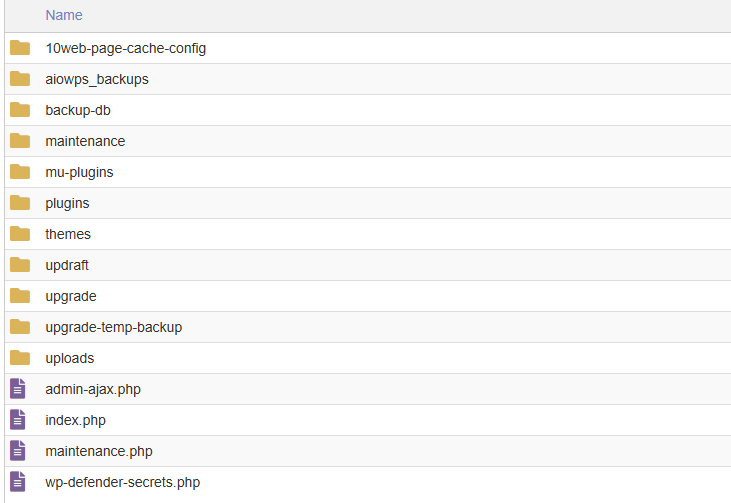
I replace all files except the wp-content folder. There might be hacker code in this folder. Once I open this folder on my computer. I found several files & folders there.
I know there should be only 4 important items.
- Themes
- Plugins
- Uploads
- index.php
I deleted all other files & folders.
There will have some folder like languages, upgrade, mu-plugins & some files & folder according to your plugins. Don’t worry about those. Once you delete those files & folders, those will automatically generate again with fresh files.
Clean the Uploads Folder
As I previously told you, I replaced all plugins & themes from the WordPress repository, and now only have the uploads folder to clean.
I manually went through the wp-content/uploads folder. Here, I:
- Deleted all
.php, .js, .htaccess, or.zipfiles - Opened strange image files in Notepad++ to check for hidden PHP code
Upload folders are often ignored during scans, making them the hacker’s favorite hiding place.
Clean the WordPress Database
As you know, I have the database on my computer. I opened that in Notepad++. Then I:
- Searched for
<script,iframe, and other malicious JavaScript - Found and removed XSS-related code that was hiding inside the
wp_optionstable - Verified that no admin users had been added by the attacker
Now I have my clean database & files to upload to the new hosting server.
Upload to the New Host
Once I had clean files and a clean database:
- I created a new database on Hostinger
- Imported the cleaned database
- Uploaded the files via cPanel File Manager
Now there is another important thing to fight. I don’t have wp-config.php file
- The original
wp-config.phpfile was deleted by the hacker, so I:- Renamed
wp-config-sample.phptowp-config.php - Opened the new config file and added the database name, user, password, and host
- Renamed
- Then I added new WordPress salt keys to enhance security. These salt keys make login sessions and cookies harder to guess or hijack
- I generated fresh keys from the official WordPress API: https://api.wordpress.org/secret-key/1.1/salt
- Copied and replaced the keys into
wp-config.php
- Connected everything.
It’s time to check the website. I was fear of what I had done. Making mistakes in this whole process is expected.
I made a mistake!
I got the error establishing a database connection error on the website. I know why this error occurs. If the database doesn’t connect properly, then it can happen.
I found the issue, there to update the wp table prefix.
By default, it is ‘wp_’ in the wp-config.php file. Exactly like this:
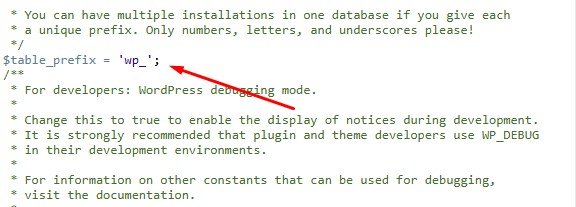
However, it was different in the Wilton Dental website database. Something like this:
$table_prefix = 'nwpc';Finally, I updated the table prefix
After that, I checked the website. It was loading fine.
Scan the WordPress Site for Malware
The site is live, and there was nothing to update. Because I replaced WordPress core files, themes & plugins manually.
Now I want to perform a malware scan to check my work.
I used some free website malware scanners like Sucuri, VirusTotal & MalCare to perform an initial external scan. This helps check whether the site has malware or not.
You can check using Securi & VirusTotal without logging into them. But to perform a MalCare scan, you just have to log in. You can do that for free.
The results?
The results are fine. No malware was found!
Website Is Now Clean – Now Let’s Block Future Attacks
At this point, our WordPress website is fully cleaned.
- All the malware is gone
- The bad files and suspicious code have been removed
- We moved to a new, secure hosting provider
- We replaced old and unsafe plugins and themes with fresh, updated ones
But let’s stop for a second and ask — how did the hacker get in?
In most cases, it happens in one of two ways:
- Through a backdoor like a web shell, which spreads from one infected site to others on the same server
- Through a security hole in an outdated plugin or theme
In our case, both were possible.
The original hosting had 71 sites, and many of them were infected. The hacker likely used a web shell called Casper Webshell to jump between sites and upload malicious code.
That’s why we decided to move to a fresh hosting account. Now the hacker no longer has access to this website.
Also, we made sure that all plugins and themes were up to date. So even if the hacker used a known security hole in the past, that hole is now closed.
But here’s the thing: Hackers don’t give up easily.
They often scan the internet looking for new WordPress sites to attack. Even if your site is safe today, they may try again tomorrow.
So what can we do?
We need to take some extra steps to protect the site from future attacks.
That’s what we’ll do next.
Let’s make it secure together to prevent future attack.
Add Firewall and Harden WordPress
There are many WordPress security plugins out there. But in my experience of over 14 years, the one I trust most is Wordfence.
It’s the #1 security plugin for WordPress, and it does much more than just scanning for malware.
Here’s why I recommend Wordfence over others:
✅ Built-in Malware Scanner – Scans your website for infected files and suspicious code
✅ Real-Time Firewall – Blocks knew threats before they reach your website
✅ Brute Force Protection – Stops hackers from guessing your password
✅ Live Traffic View – See who’s visiting your site and what they’re trying to do
✅ Login Security – Includes 2FA (Two-Factor Authentication) and CAPTCHA
✅ File Change Detection – Alerts you when a file is modified unexpectedly
✅ Country Blocking – Optional, block access from specific countries
I installed Wordfence on this site right after cleaning it.
But just installing the plugin is not enough.
Wordfence needs to be properly configured to give your site the best protection.
If you configure Wordfence like a professional, your site becomes much harder to hack.
That’s what I did for this project. I set up Wordfence professionally.
Then I perform a final scan using Wordfence. Here is the result.
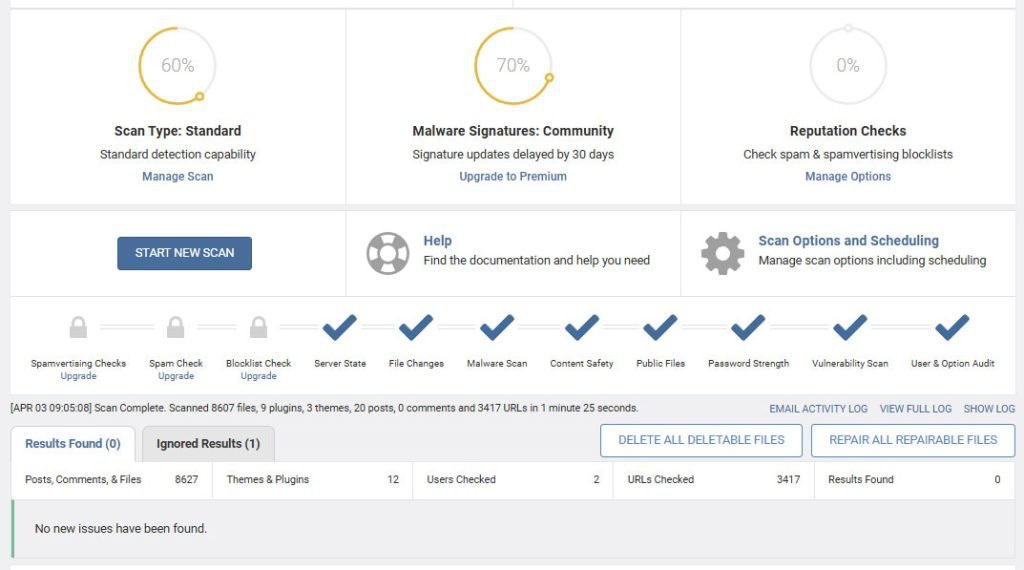
- Now, Wordfence will automatically scan the site.
- If you use the free version, Wordfence scans your site once a day
- If you upgrade to Wordfence Premium, you get real-time scanning and advanced protection
Here’s my advice:
If your website is important to your business or your personal brand, get Wordfence Premium. It’s worth it.
Thanks to Wordfence, this site is now protected against:
- Brute force login attacks
- Malware uploads
- Suspicious traffic
- Known hacker bots
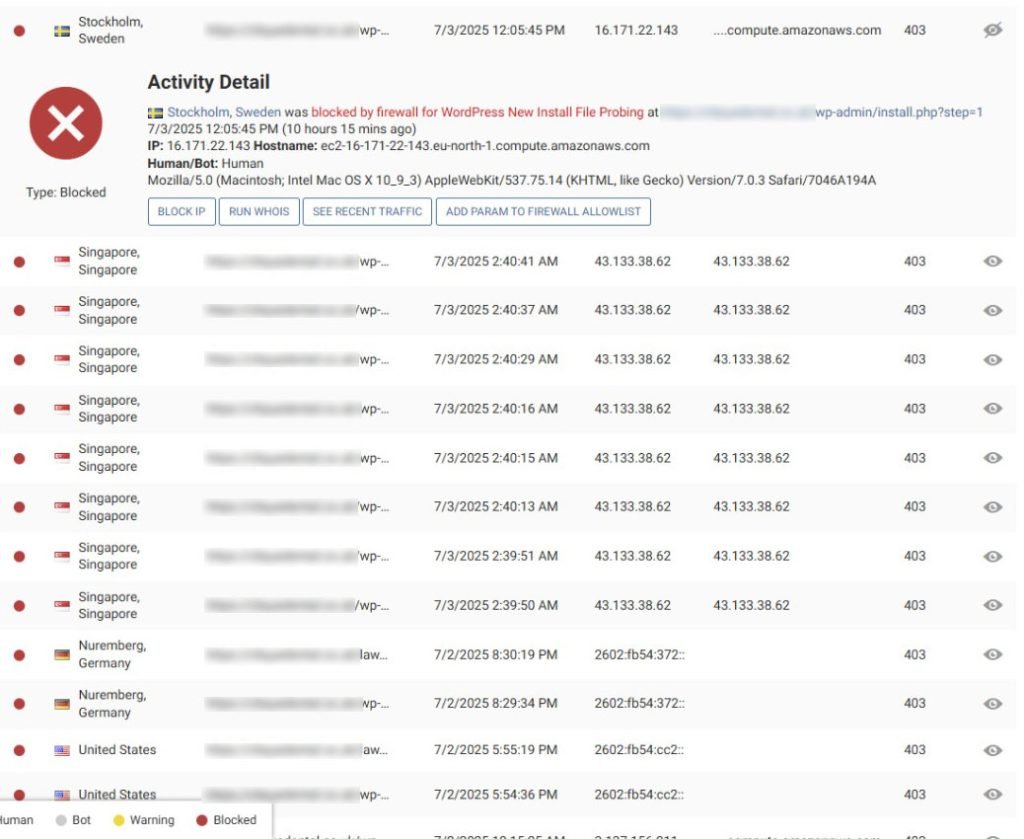
And I can monitor everything live like this.
Change the WordPress Login URL
Did you know that all WordPress websites have the same login page?
By default, your login URL is:
www.website.com/wp-adminThat’s the first place hackers go when they try to break into a WordPress site.
They employ a technique known as a brute force attack. This means they keep trying different usernames and passwords until one works.
So here’s a simple question:
What if we change the login URL so hackers can’t even find it?
Yes, we can do that!
And it’s one of the easiest and most effective ways to protect your website.
How We Did It?
To change the login URL, we used a plugin called WPS Hide Login.
It’s a lightweight, simple, and very powerful plugin. It doesn’t modify any core WordPress files. It just changes the way the login page is accessed.
We installed the plugin and configured it to use a custom login URL.
For example, instead of:
www.website.com/wp-adminWe set it to something like:
www.website.com/my-login-secretThis way, only we know the new login page, and all bots or hackers will get a 404 error when they try to visit /wp-admin.
Why This Works
- Hackers and bots can’t find your login page
- Reduces brute force attack attempts
- Makes your site less of a target
- Works smoothly with most themes and plugins
- No coding required
Just install, set the new login path, and you’re done!
Important:
Be sure to write down or bookmark your new login URL so you don’t forget it.
Disable xmlrpc.php for Better Security
Once hackers can’t reach your login page, their next favorite target is a file called:
xmlrpc.phpSo… what is this file, and why is it important?
This file lives in the root folder of every WordPress website.
You’ll find it here:
www.website.com/xmlrpc.phpThis file is used to connect your WordPress site to mobile apps or other external tools.
For example:
- Publishing posts from a mobile app
- Remote access via third-party services
- Jetpack plugin features
But most WordPress users don’t need this anymore, especially if you manage your website from your browser like most people do.
Why Hackers Love This File
Hackers often use xmlrpc.php to:
- Launch brute force attacks by making thousands of login attempts in one request
- Send spam or malware using XML-RPC methods
- Try to gain access to your site without using
/wp-admin
That’s why it’s a good idea to disable this file, especially if you don’t use any tools that require it.
What We Did
Since this site is a service-based website, and the owner logs in directly through the browser, we don’t need xmlrpc.php.
So we blocked it using a simple code inside the .htaccess file.
Here’s what we added:
<Files xmlrpc.php>
Order allow,deny
Deny from all
</Files>This tells the server to block all access to that file. So no one can use it anymore, not even hackers or bots.
Bonus: Let Visitors See the Site Again
Earlier in the cleanup process, we had put the site in maintenance mode by restricting access to our IP address using .htaccess.
Now that the site is clean and secure, we want everyone to be able to visit it again.
So we removed that old maintenance code from the .htaccess file, too.
order deny,allow
deny from all
allow from My_IPWe removed the above code from the .htaccess file. Now the site is public again, and much safer than before!
Lock File Edits and Theme/Plugin Installs
Even with a firewall, hackers sometimes find ingenious ways to gain access to a WordPress site.
So let’s add one more safety lock.
Why Block File Editing?
WordPress has a built‑in editor that lets you change theme and plugin files from the dashboard. That sounds handy, but if a hacker breaks into your admin area, they can also use that editor to:
- Inject malicious code
- Upload a backdoor
- Break your site with one wrong click
The simple fix
We can turn off that editor, and even stop new plugins or themes from being installed by adding just two lines to the wp-config.php file.
define( 'DISALLOW_FILE_EDIT', true );
define( 'DISALLOW_FILE_MODS', true );What these lines do:
DISALLOW_FILE_EDITblocks the built‑in theme and plugin editor.DISALLOW_FILE_MODSstops anyone from installing, updating, or deleting plugins and themes through the dashboard.
Good news: If a hacker somehow gets WordPress access, they still can’t change your files or add a hidden plugin.
How We Add the Code
- Open
wp-config.phpwith the editor. - Paste the two lines just above the line that says
/* That's all, stop editing! */. - Save the file and close it.
That’s it! Your site is now locked down:
- No one can edit theme or plugin files from the dashboard
- No surprise plugins or themes can be installed without server‑level access
If you ever need to install or update plugins in the future, simply remove (or set to false) the second line, do the update, and add it back.
However, for daily use, keeping these lines active provides an extra layer of protection against attackers.
These steps make it harder for any attacker to re-enter the system.
Monitor and Maintain
We cleaned the site and closed all known doors. Is that the end?
Not really.
Nothing on the internet is 100 % safe.
New plugins and theme updates will appear. If you ignore them, an old version can open a fresh hole and allow a hacker to gain access again.
Server settings may also change, or a weak password might slip in. That is why I will keep an eye on the site every day.
Monitor Traffic with Wordfence
Wordfence has its own live traffic view. I log in once a day and look at:
- Login attempts (who tried to sign in)
- Pages or files bots are probing
- New IP addresses that look strange
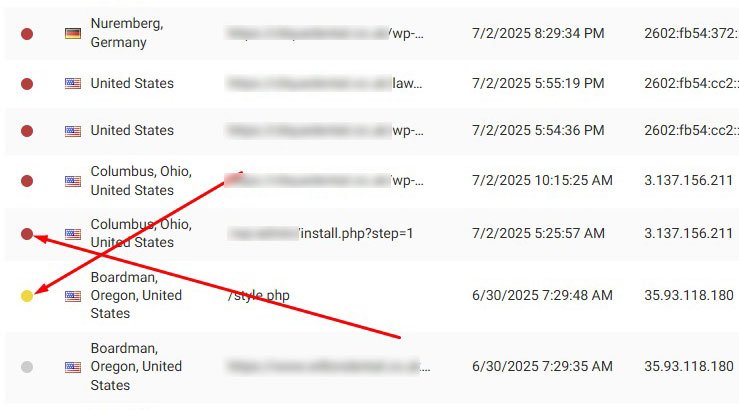
Most bad visitors are blocked by Wordfence automatically. If the plugin is not sure, I review the IP, check what it tried to do, and block it by hand if needed.
This quick routine takes only a few minutes but keeps trouble away.
Educate the Client
Security is a team game. The client is busy, so I give short, clear rules:
- Update WordPress, themes, and plugins as soon as you see the notice.
- Use strong passwords and two‑factor login.
- Never install a plugin you do not trust.
- Do not click strange links sent by email or WhatsApp.
Moreover, we agreed to place the site under our WordPress Maintenance Service. We WPBravo, will ensure the website security. We will handle all updates, scans, and fixes while the client will focus on patients.
Schedule Automated Backups
If anything ever breaks, a recent backup is the fastest way back online.
- I saved a fresh copy of the clean site on my computer.
- I installed UpdraftPlus to run automatic backups.
- Files and database copy to Google Drive every day.
- Old backups delete themselves so the server stays light.
With a good backup plan, recovery is a click, not a nightmare.
Can We Help You?
Is your WordPress site showing strange pop‑ups, redirects, or “critical error” messages?
Are you worried that months or years of hard work could vanish because a hacker slipped in?
Get Expert Malware Removal Service
Don’t wait while hackers steal your brand value.
WhatsApp us at +8801773355998 now to book a free security check.
Your website deserves peace of mind, let’s give it that, today.
Client Feedback After a Successful Recovery
The client, Dr. Towolawi, was very happy.
His private content, research, medical solutions, and appointment system were fully restored. He told me:
“You saved my business and my knowledge base. I’ll remember this for life. For anything related to my website, I will always call you.”
That’s the true reward of doing professional WordPress security work.
Frequently Asked Questions | (FAQs)
If you’ve read this full case study on recovering a hacked WordPress site, you might still have a few questions in mind.
Feel free to leave your questions in the comments. I’ll reply as soon as possible.
Meanwhile, here are answers to some common questions people ask about WordPress malware removal:
How to check if my WordPress site is hacked?
There are some signs you can look for:
- Your site is showing “There has been a critical error.”
- It redirects visitors to unknown or spammy websites.
- Google marks it as unsafe.
- You see strange files or folders in your File Manager.
- Unknown admin users appear in your dashboard.
- Visitors report spam popups or fake downloads.
If you notice any of these, scan your site using a tool like Wordfence, Sucuri, or a free WP malware scanner.
Can malware be removed from a website?
Yes, definitely!
Malware can be fully removed by manually checking the files and database, replacing infected code, and securing weak spots.
Even if your site is completely down, it can be cleaned and restored by an expert.
But make sure the root cause is also fixed, like a vulnerable plugin or a weak password.
Otherwise, the hacker may come back again.
How can I get rid of malware in WordPress?
Here’s a quick summary:
- Take a full backup first (if possible).
- Put your site in maintenance mode.
- Scan for malware using a plugin like Wordfence.
- Manually remove infected files or replace them with clean ones.
- Clean your database (especially
wp_options,wp_posts, etc.). - Change passwords, reset salts, and update all plugins and themes.
- Install a firewall and enable 2FA.
If this sounds too technical, you can hire a WordPress malware removal expert (like me!) to handle it safely.
How to secure my WordPress site after removing malware?
Once the malware is gone, don’t stop there!
You should:
- Install a security plugin like Wordfence.
- Set up a firewall and limit login attempts.
- Disable file editing inside WordPress.
- Change your login URL to something unique.
- Disable
xmlrpc.phpif you don’t use it. - Keep everything updated: WordPress, themes, plugins.
- Set up daily backups with tools like UpdraftPlus.
These steps will help protect your website from future attacks.
What is the best free malware removal plugin for WordPress?
If you’re looking for a free solution, Wordfence is one of the best. It offers:
- Malware scanning
- Firewall protection
- Login security
- Email alerts when something’s wrong
Other free options include Solid Security, formerly iThemes Security, and All-in-One WP Security, but Wordfence is the most beginner-friendly.
Just remember: a plugin can scan and alert, but manual cleaning is often required for full malware removal.
How to prevent malware attacks on WordPress in the future?
Here are some simple but powerful tips:
- Never ignore updates; keep everything updated.
- Don’t use nulled themes or plugins.
- Use strong passwords and two-factor login.
- Install a trusted security plugin (like Wordfence).
- Take regular backups so you can restore quickly.
- Use a secure hosting provider.
Most importantly, don’t assume your site is “too small” to get hacked. Hackers target any site they can find.
Conclusion
Recovering a hacked website may sound scary, but with the right steps, it’s 100% possible.
We cleaned and protected Wilton Dental’s site and shared the whole case study step by step. Following this, you can do the same for yours.
Whether your site is hacked or you just want to stay safe, take action today.
Update regularly, scan for threats, and don’t wait for things to break.
Need help? I’m here.